

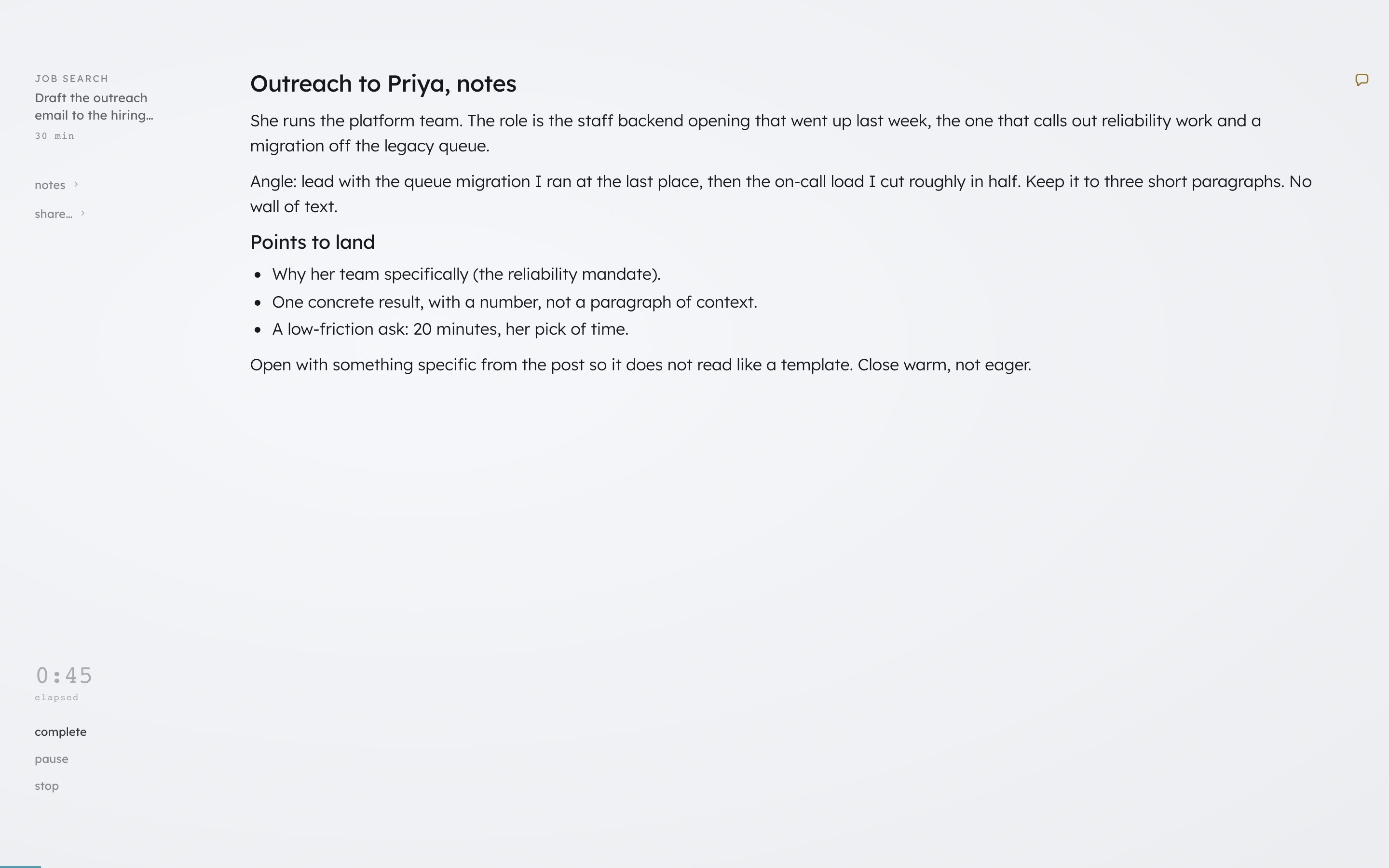
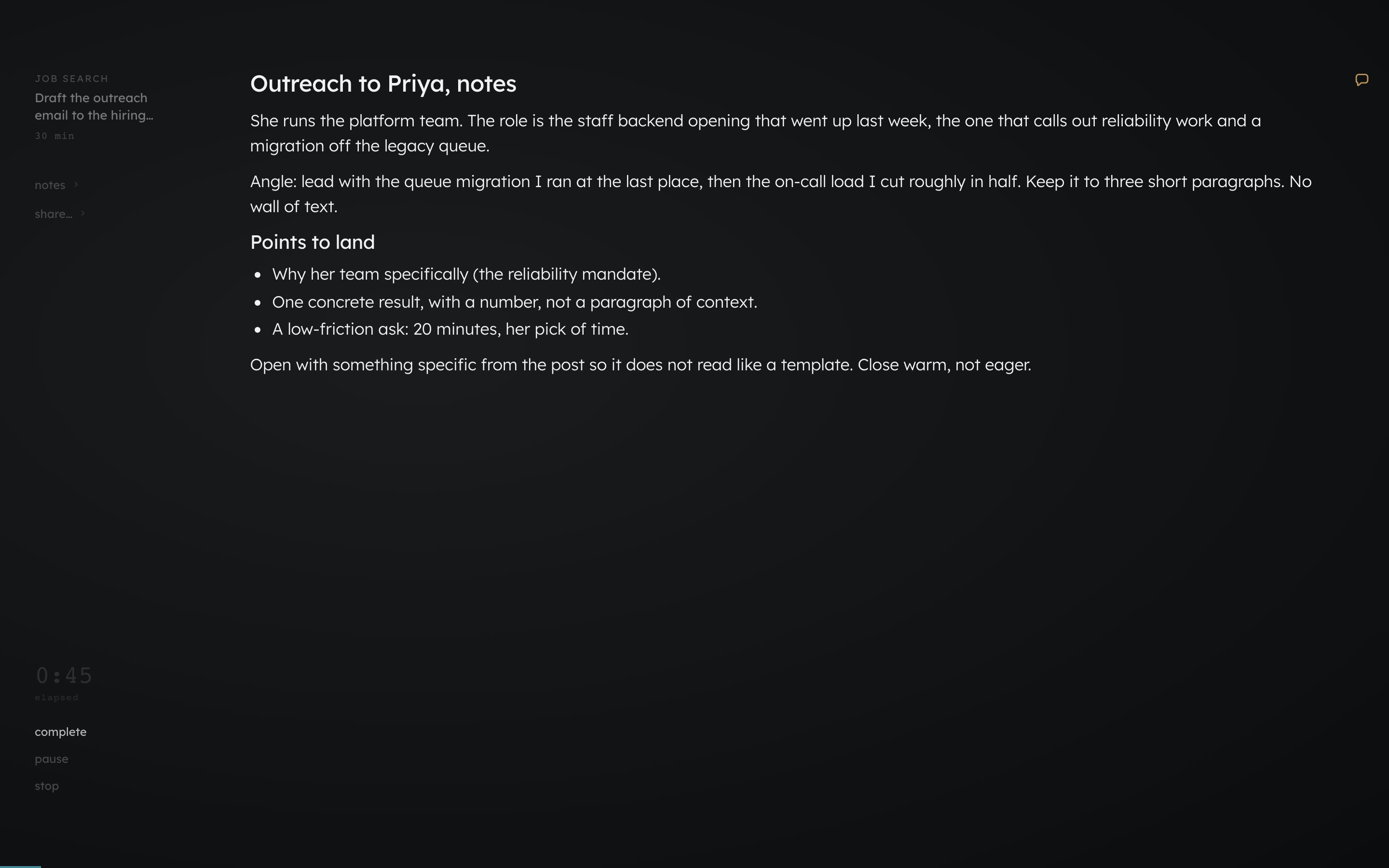
- what you’re working on.
- the elapsed timer.
- notes and share rows.
- complete, pause, and stop.
The arc, start to rest
1
Start the Action
Tap “i’m in” on an Action. It is already sized to your energy and the time you have, so there is nothing to configure.
2
Do the work, right here
The timer counts up by default: elapsed time, not a countdown. On the phone you can tap the numeral to flip it to remaining; on desktop it stays elapsed. Pause freezes the timer; paused time is left out of the minutes logged when you finish, and pausing itself is not recorded. You write in the editor and it saves itself as you go.
3
Stuck? Donna is right there
Select any text and the menu holds one Donna move, “why?” (below), answered right where you asked. Or tap Donna’s dock at the edge and ask about the work directly (its composer reads “ask about the work”). Donna can see your current draft, so you do not have to re-explain what you are working on.
4
Finish, and maybe send
Tap “complete” in the rail (a pill on the phone) when the thing is done. Saying so in the message bar works too: tell Donna you finished it and the Action is marked done, even when its card has scrolled out of view. If what you wrote is a message, Donna may offer to send it through a tool you have connected (how that works is covered below).
5
Then rest
The first thing Donna offers is a short break, sized to the work you just did. Going straight to the next thing and stopping here sit right alongside it.
Donna’s inline help: one question
Select some text and a bubble menu appears: the usual formatting, and one Donna item at its head, “why?”. It answers the question you are actually stuck on, “why am I writing this?”, in a line or two pulled from your Outcome: the goal this draft serves, the stakes, the concrete details you already told Donna. The answer appears right at the text you selected and does not touch your draft. If the stall is the blank document itself, the guide on ADHD writing paralysis covers getting one rough first sentence down so there is something to select.“why?” answers from your Outcome, your stakes, and the details you already gave Donna. There is no generic “make it longer,” “summarize,” or “fix my grammar” here.
Picking up an earlier note
The rail’s “notes” row opens a flyout with your earlier notes on the same Outcome, plus “new note” to start fresh. If there is nothing yet, it reads “no saved notes yet.”Your work does not vanish
What you write is saved with its Outcome. Donna carries the concrete details forward, so related work starts sharper the next time you pick it up.How your work becomes memory
What Donna keeps from a finished piece of work, and the controls you have over it.
When you finish
The moment you tap “complete,” Donna leads with a break. The options:- a sized break: “take a 5m break” or “take an 8m break,” captioned “suggested.”
- “straight to the next thing” and “stop here,” alongside it.
- “save as a habit,” for work you started ad hoc: it keeps the setup for next time (see Habits).
Stopping early
On desktop, “stop” in the rail ends the work then and there, no confirm. On the phone, “leave it here” asks a gentle check first: “wrap it here? your time’s logged.” with “yes” or “keep going.” Stopping early is never held against you, and the time you did put in still counts.Donna records how long a work period really ran, including the ones that drifted. What it does with that time depends on how the period ended: only a period you finished or stopped yourself counts toward your totals and toward learning how long your work actually takes. A forgotten timer, a skip, a park, or switching away is recorded for what it was, and left out.
If the work does not happen
Sometimes you start and it does not land. A stalled Action goes on no record. Ask, and Donna can offer a smaller version, suggest a genuinely different angle, or ask what is actually in the way. See Bad days for how Donna meets the hard ones.If it is a message, Donna can send it (with your say-so)
When the draft is something that gets sent (an email, a Slack message) and you have connected that tool under Connections, Donna can offer to send it for you. That always opens a confirm step: you see the recipient and the full text, edit anything, and only your tap sends it. If you want the note itself out in the world instead, the rail’s share row turns it into a public, revocable link.Next: sharing your work
What a share link shows, and how to turn it off.